How to Make a Monthly Budget on Google Sheets That Works
If you’re trying to budget in 2026 without a system, congratulations, you are basically raw-dogging modern capitalism.
One-click checkout. Invisible subscriptions. “Buy now, pay later” everywhere. And a paycheck that disappears like it owes someone money.
A monthly budget on Google Sheets can absolutely work, but only if it does three things:
- Tells the truth (about what you actually spend)
- Creates guardrails (so you stop “accidentally” spending your goals)
- Runs on a rhythm (because a budget you don’t check is just financial fan fiction)
Meet Sarah. Sarah “doesn’t spend that much.” Sarah also had three streaming services, two fitness apps, a cloud storage plan, and a meditation app she used once during a breakup. When we finally pulled her transactions, the subscription total was basically a car payment. The sheet didn’t judge her. It just snitched.
And here’s the uncomfortable macro backdrop: 60% of Americans are living paycheck to paycheck, and a big chunk are stressed about money, carrying credit card debt, and missing payments. This isn’t “you’re bad at money.” This is “the game got harder.”
Let’s build a Google Sheets budget that fights back.
What “works” actually means (before you open Sheets)
A budget that works is not:
- A perfect plan
- A moral identity
- A spreadsheet so complex it requires a project manager
A budget that works is:
- Reality-based (built from past spending, not vibes)
- Decision-grade (categories that help you choose, not categories that entertain you)
- Low-friction (you can maintain it on a busy week)
Quotable truth: Your budget isn’t broken, your maintenance plan is.
The simple Google Sheets monthly budget setup (4 tabs, no nonsense)
You can do this in one file with four tabs. That’s it. If you feel the urge to add a fifth tab, go drink water and lie down.

Here’s the layout:
| Tab | Purpose | What you track | Why it matters |
|---|---|---|---|
| Setup | Drop-down lists + category map | Categories, groups, month selector | Keeps your data clean and consistent |
| Transactions | Raw transaction log | Date, merchant, category, inflow/outflow | This is your source of truth |
| Budget | Monthly plan vs actual | Budgeted, actual, remaining per category | Shows what to do next |
| Dashboard | Quick scoreboard | Safe-to-spend, savings rate, trends | Keeps you checking in |
Step 1: Build your categories like an adult (10 to 14 max)
Most people fail here by creating 47 categories, including “Snacks,” “Other Snacks,” and “Snacks But Emotional.”
Your categories should be:
- Big enough to matter
- Clear enough to categorize fast
- Stable month-to-month
A solid starter set (steal this, don’t overthink it):
- Housing
- Utilities
- Groceries
- Transportation
- Insurance
- Dining out
- Shopping
- Health
- Subscriptions
- Kids/Pets (if applicable)
- Debt payments (interest and fees go here, principal can be tracked separately)
- Savings/Investing
- True expenses (sinking funds, more on this below)
- Fun (yes, you need one)
In your Setup tab, create two columns:
- Category
- Group (Fixed Bills, Variable, Goals, True Expenses)
This group column is what makes your sheet smarter than “a list of regrets.”
If you want deeper category rules (especially for Amazon, Target, Costco chaos), steal ideas from this budgeting categories template.
Step 2: Create a Transactions tab that doesn’t lie
In the Transactions tab, use these columns:
| Column | Name | Notes |
|---|---|---|
| A | Date | Use actual posted date |
| B | Merchant | Whatever the bank calls it |
| C | Category | Drop-down from Setup |
| D | Group | Pull from Setup via formula |
| E | Amount (raw) | Signed amount from CSV (income positive, spend negative, or vice versa) |
| F | Inflow | Calculated positive number |
| G | Outflow | Calculated positive number |
| H | Notes | Optional, but helpful |
| I | Month | Calculated YYYY-MM |
Import transactions (fastest way)
Export your last 60 to 90 days from your bank or card as CSV, then paste into the sheet.
Two rules that save your sanity:
- Do not paste over headers. Your formulas will revolt.
- Do not mix accounts without adding an Account column if you plan to reconcile.
Normalize your numbers (so formulas behave)
Banks love chaos. Your sheet shouldn’t.
Assuming your Amount (raw) is in column E:
- Inflow (F2):
=MAX(E2,0) - Outflow (G2):
=MAX(-E2,0)
Now both inflow and outflow are positive numbers. Life gets easier.
Add a Month helper (so your monthly budget is actually monthly)
In I2:
=TEXT(A2,"yyyy-mm")
Copy down.
Auto-pull Group from Category
In D2, if your Setup table is in Setup!A:B (Category in A, Group in B):
=IFERROR(VLOOKUP(C2,Setup!$A:$B,2,FALSE),"Needs Review")
“Needs Review” is your spreadsheet’s bouncer. If something looks weird, it gets flagged.
Quotable truth: Bad categories turn good intentions into bad decisions.
Step 3: Build the Monthly Budget tab (plan vs. reality)
In the Budget tab, add a month selector at the top:
- Cell B1: Month (like
2026-04)
Then build a table with:
- Category
- Budgeted
- Actual
- Remaining
Actual spending per category (SUMIFS)
If your category is in A5 on Budget tab, and your month is in B1:
=SUMIFS(Transactions!$G:$G,Transactions!$C:$C,$A5,Transactions!$I:$I,$B$1)
That sums Outflow for that category and month.
Remaining
=B5-C5
Then add conditional formatting:
- Remaining < 0 turns red
- Remaining between 0 and 10% of budget turns yellow
Budgets are guardrails, not museum exhibits.
Step 4: Add the thing everyone forgets, “true expenses”
True expenses are predictable but irregular costs that love to ambush your monthly budget.
Examples:
- Car repairs
- Annual subscriptions
- Gifts and holidays
- Insurance deductibles
- Travel
If you don’t monthly-ize these, your sheet will look “great” until it suddenly doesn’t.
Use a “True Expenses” section in your Budget tab.
The formula is simple:
Monthly contribution = Annual cost / 12
If you want a deeper playbook for this, see the sinking funds guide.
Quotable truth: Most “unexpected” expenses are just expenses you refused to name.
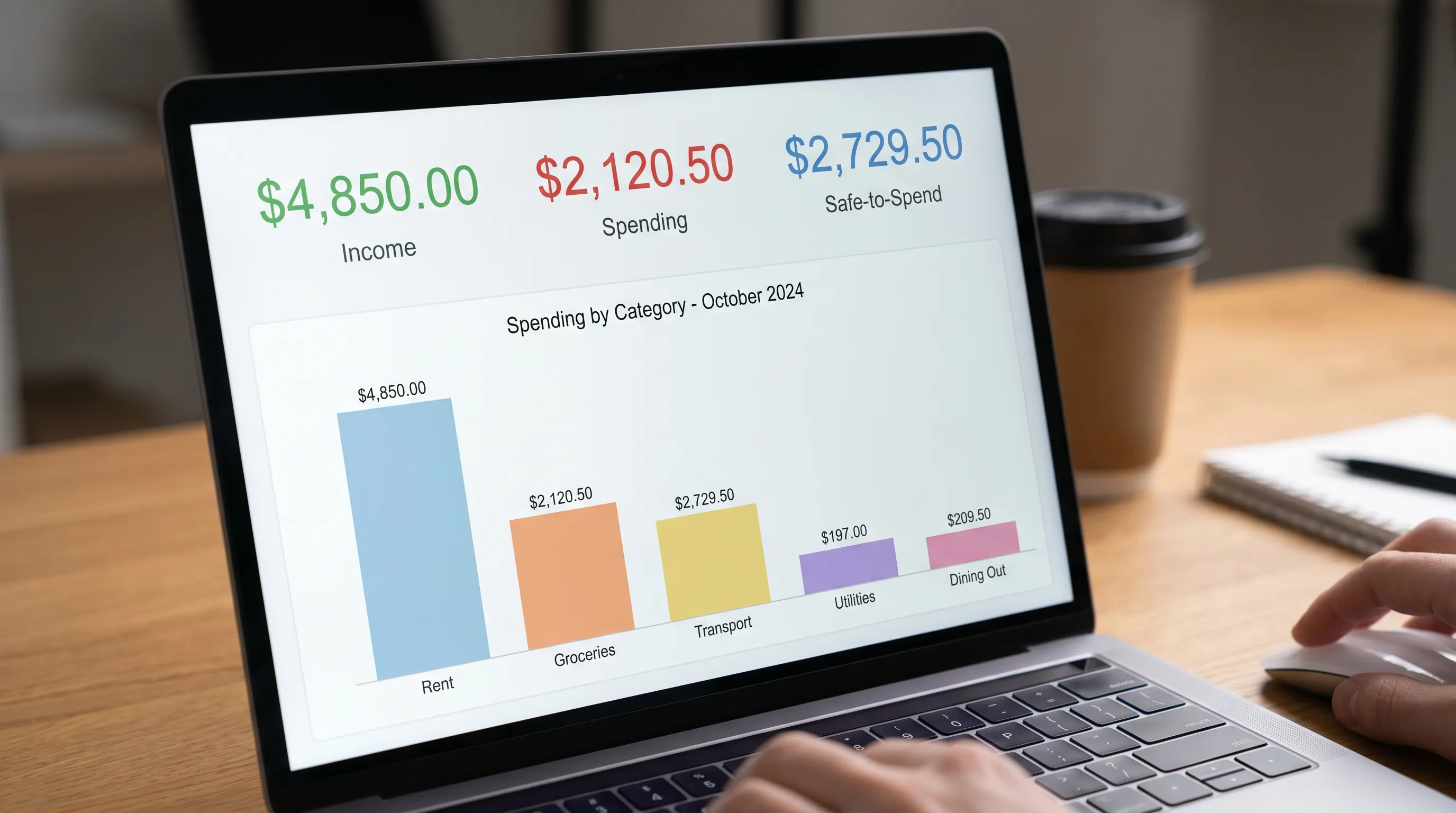
Step 5: Add a Dashboard that makes you check in
Your Dashboard should answer three questions in 30 seconds:
- What can I safely spend?
- Am I saving anything meaningful?
- What category is trying to ruin me this month?
The simplest dashboard metrics
In the Dashboard tab, calculate:
- Total income (month):
=SUMIF(Transactions!$I:$I,$B$1,Transactions!$F:$F) - Total spending (month):
=SUMIF(Transactions!$I:$I,$B$1,Transactions!$G:$G) - Net cash flow: Income minus spending
- Savings rate (cash-flow version):
(Income - Spending) / Income
Savings rate formula:
=IFERROR((IncomeCell-SpendingCell)/IncomeCell,0)
Add a chart (optional): spending by category for the month, or a 6-month trend for total spending.
Your weekly money check-in (12 minutes, or your sheet dies)
Your monthly budget is not a “set it and forget it” crockpot recipe. It’s a houseplant.
Once a week (same day, same time), do this:
- Scan uncategorized or “Needs Review” transactions
- Check top 3 flex categories (dining out, shopping, fun)
- Move money between categories if life happened (because it did)
- Look at “Remaining” and decide what to stop doing
That’s the whole thing.
Quotable truth: A budget you review weekly is a strategy. A budget you review monthly is an autopsy.
Common Google Sheets budgeting mistakes (and how to avoid them)
Mistake 1: Counting transfers as spending
Moving money from checking to savings is not “an expense.” It’s a transfer.
Fix: track transfers separately, or exclude them from spending categories.
Mistake 2: Double-counting credit card payments
Your card payment is paying off past spending, not new spending.
Fix: categorize purchases, treat the payment as a transfer.
For a clean workflow, see this credit card budgeting guide.
Mistake 3: Building a perfect sheet, then never using it
The best budget is the one you still use when you’re tired, busy, or mildly spiraling.
Fix: simplify categories, automate what you can, stick to the weekly check-in.
Mistake 4: Ignoring subscription creep
Subscriptions are the financial equivalent of glitter. They spread quietly and never fully leave.
Fix: create a Subscriptions category, review monthly, cancel aggressively.
If you want a ruthless cleanup plan, use this 30-minute subscription reset.
When to keep Google Sheets, and when to graduate
Sheets are great when:
- You love manual control
- Your transactions are simple
- You want custom modeling (like scenarios, payoff timelines, future projections)
Sheets struggle when:
- You have lots of accounts
- You have messy merchants (hello, Amazon)
- You want automation and consistent categorization without babysitting it
This is where a hybrid approach wins.
The hybrid move (Sheets for planning, app for truth)
Use an app to automatically track transactions, categories, subscriptions, and net worth, then export to Sheets when you want to model scenarios.
If you’re a former Mint user, this is the part that feels like upgrading from a flip phone.
FIYR, for example, is built to track income, expenses, subscriptions, savings rate, and net worth in one place, with custom categories and transaction rules so the data stays clean. Then you can keep Sheets as your sandbox for “what if we…” planning.
If you’re weighing tools vs spreadsheets, this comparison is worth reading: Digital budgeting vs spreadsheets: which wins in 2026?
Quotable truth: Spreadsheets are powerful. Automation is peaceful. Choose your religion.
The 30-minute build checklist (copy, paste, win)
Here’s your timeboxed plan:
- 5 minutes: Create the four tabs (Setup, Transactions, Budget, Dashboard)
- 10 minutes: Build 10 to 14 categories and assign a Group
- 10 minutes: Paste in 60 to 90 days of transactions, add Category drop-downs
- 5 minutes: Build Budget formulas (SUMIFS) and add conditional formatting
Then schedule the weekly check-in. Put it on your calendar. Treat it like brushing your teeth.
Because the goal is not “a beautiful budget.”
The goal is a life where money stops being a daily surprise attack.
Frequently Asked Questions
How do I make a monthly budget on Google Sheets if I have irregular income? Build your budget from a conservative income baseline (like a 3 to 6 month average, or the lowest recent month), then treat extra income with a rule (save, pay debt, fund sinking funds). Avoid budgeting based on best-case months.
What’s the best way to categorize transactions in Google Sheets? Use a short, decision-focused category list (10 to 14 categories) and add a “Needs Review” category for anything unclear. Consistency beats precision.
How do I track subscriptions in my Google Sheets budget? Create a Subscriptions category and tag all recurring charges there. Review it monthly, then cancel, downgrade, or rotate services. If you want detail, add a separate subscription list table (service, cost, renewal date).
How often should I update my budget spreadsheet? Weekly. A 10 to 15 minute check-in prevents month-end panic and helps you correct course while there’s still time.
Is Google Sheets or a budgeting app better? Sheets are great for control and modeling, apps are better for automated transaction tracking and clean data over time. Many people win with a hybrid: app for tracking, Sheets for planning.
Want the power of a spreadsheet without living inside one?
If your Google Sheet is starting to feel like a second job, you’re not failing. You’re just hitting the natural limits of manual tracking.
FIYR is built for people who want accurate spending and income tracking, flexible budgeting, custom categories, transaction rules, subscription visibility, savings-rate tracking, and FIRE-focused insights, without the constant copy-paste maintenance.
If you’re curious how a modern tracker compares to the old guard (Mint, Quicken, and friends), start here: Best Mint alternative 2026: the tools worth switching to. Or, if you want a guided setup flow, grab this: FIYR budgeting tutorial: your first week setup.