How to Import CSVs in a Finance App Without Breaking Your Data
Meet Sarah.
Sarah did the responsible adult thing. She exported years of transactions from Mint, grabbed a CSV, and tried to import it into a new finance app.
Five minutes later, her “Groceries” category looked like a crypto chart. Income was negative. Transfers became “spending.” And her net worth did a magic trick: it disappeared.
CSV imports are the personal finance version of “just copy and paste it.” Famous last words.
And here’s why it matters: if your data is wrong, your decisions are wrong. In a world where 60% of Americans are living paycheck to paycheck, you do not need your budget app hallucinating your reality.
This guide shows you how to import CSVs in a finance app without breaking your data, your categories, or your will to live.
The real enemy is not the CSV. It’s “silent corruption.”
Most CSV imports don’t fail loudly. They succeed quietly, and poison everything downstream:
- Your spending totals drift.
- Your category reports lie.
- Your savings rate gets inflated (false confidence is expensive).
- Your FIRE projections become fan fiction.
The goal is not “get the file in.” The goal is preserve meaning.
If you remember one line from this article, make it this: a finance app is only as smart as the mess you feed it.
Before you import: decide what “correct” means
CSV importing goes sideways because people skip the boring part: defining truth.
Pick your “source of truth”
Choose one:
- Bank statements are truth: Great for cash flow and budgeting.
- Card statements are truth: Great for spending detail.
- Mint export is truth: Useful for history, but can contain stale categories, duplicates, and weird renames.
- A cleaned spreadsheet is truth: Best accuracy, most work.
If you’re migrating from Mint, your best move is usually:
- Use bank and card exports for the last 3 to 12 months.
- Use Mint export for older “nice to have” history.
Why? Recent data powers better decisions. Ancient Starbucks doesn’t.
Define your non-negotiables (your import rules)
Write these down before you touch the file:
- Dates: Do you want transaction date or posting date?
- Amounts: Should expenses be negative and income positive (or vice versa)?
- Transfers: Do transfers count as spending? (They should not.)
- Duplicates: How will you detect and remove them?
- Categories: Will you map old categories to a new simplified set?
You’re building a small constitution for your money data. If you care about transparency and portable records in other parts of life too, you’ll appreciate why movements focused on accountable systems exist, like continuous direct-democracy tools that emphasize clearer participation and traceability.
The CSV cleanup that prevents 90% of disasters
Here’s the part nobody talks about: your finance app can’t interpret what your CSV can’t explain.
So give it something clean.
Your “minimum viable CSV” columns
Most finance apps can work with a small set of fields. The rest is optional.
| Field | What it should look like | Why it matters |
|---|---|---|
| Date | `2026-03-19` (ISO) | Prevents month/day swaps and sorting chaos |
| Description / Payee | `TRADER JOE'S #123` | Powers rules and merchant-based categorization |
| Amount | `-54.32` or `54.32` | Your app’s math depends on consistent sign |
| Account (optional) | `Chase Freedom` | Helps if you’re importing multiple accounts |
| Category (optional) | `Groceries` | Useful if you want to keep your old tagging |
| Notes / Labels (optional) | `New York Trip 2025` | Adds context without category explosion |
If your file has 37 columns, congrats, you have an enterprise ERP problem. Trim it.
Standardize dates (because “03/04/05” is not a date, it’s a threat)
Convert all dates to YYYY-MM-DD.
Common failure modes:
- `MM/DD/YYYY` gets read as `DD/MM/YYYY`.
- Mixed formats break sorting.
- Time stamps import as a different day due to time zones.
Fix: in Excel/Sheets, create a clean date column and export again.
Normalize amount signs (the #1 way imports quietly lie)
Different systems represent outflows differently:
- Bank exports often show expenses as negative.
- Some apps store expenses as positive but label them as “debits.”
- Refunds might flip signs.
Pick one standard:
- Expenses = negative, income = positive is the most common.
Then enforce it.
A quick sanity check:
- If your “Dining Out” category totals positive, you probably inverted signs.
Split transfers from spending (your budget isn’t a shell game)
Transfers are not spending. They are money moving between pockets.
Classic examples that get misclassified:
- Checking to savings
- Credit card payments
- Venmo/Zelle transfers to friends
- Brokerage contributions
If these import as expenses, your spending skyrockets and your savings rate faceplants.
Practical fix:
- Add a column called `Type` or `IsTransfer` (even if your app ignores it, you can filter while cleaning).
- Use consistent keywords in descriptions (ex: “TRANSFER TO SAVINGS”).
De-duplicate like a paranoid accountant (because you should be)
Duplicates sneak in when you import:
- Mint export plus bank export overlaps.
- You export the same date range twice.
- “Pending” and “posted” both appear.
A simple dedupe key in a spreadsheet:
- `Date + Amount + Description`
Not perfect, but it catches most.
Import day: do it in a way that you can roll back
Treat your import like a software deployment. Seriously.
Import in small batches
Don’t import five years at once.
Do this instead:
- Start with 30 days.
- Validate totals and categories.
- Then import the next 90 days.
- Then the rest.
Small batches make debugging possible. Big imports make you cry into a pivot table.
Map categories intentionally (don’t forklift your old mess)
If you bring over 80 Mint categories, you’re not “organized.” You’re just recreating your old confusion in a new apartment.
Better approach:
- Create a tight category skeleton (8 to 15 core categories).
- Use labels for context (Trips, Holiday 2026, Baby Stuff, Side Hustle).
This is where modern apps tend to separate themselves.
For example, FIYR is built around custom categories, category groups, and transaction rules so you can keep your structure simple while still tracking the detail that matters (like labeling “New York Trip 2025” across flights, food, and shows).
Clean structure, rich context. That’s the cheat code.
Don’t import balances and transactions as the same thing
Many CSV exports include:
- Transaction rows (good)
- Balance snapshots (danger)
If balance snapshots import as transactions, your net worth timeline turns into modern art.
Rule: Only import transactions as transactions.
If you want net worth tracking, add assets and liabilities separately (and update them on a cadence). Mixing the two is how people accidentally “spend” their mortgage.
After import: run the “data integrity audit” (10 minutes that saves weeks)
Here’s the part that separates adults from spreadsheet goblins.
Audit 1: Check totals against reality
Pick a date range you can verify (last month is perfect).
Compare:
- Total inflows
- Total outflows
- Net change
Your net change should roughly match what happened to your cash accounts (ignoring timing differences).
Use this quick equation:
- Net change = Income − Expenses
If your app says net change is wildly different from what you know happened, something is mis-signed, duplicated, or miscategorized.
Audit 2: Spot-check the usual suspects
Look at:
- Credit card payment transactions
- Transfers between accounts
- Refunds
- Paychecks
- Big recurring bills
If any of these are wrong, your reporting is wrong.
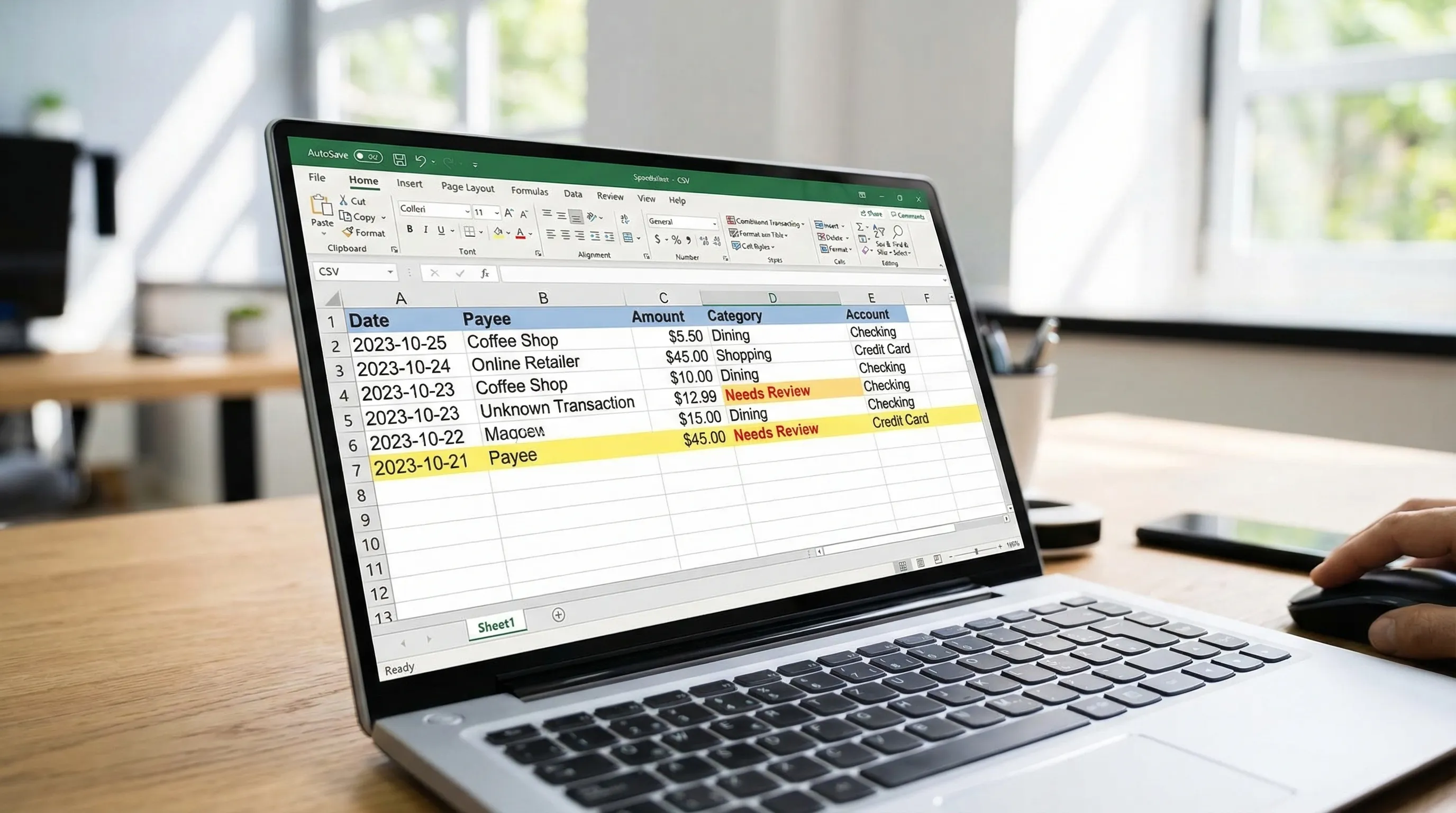
Audit 3: Build a “Needs Review” bucket
This is a power move.
Create one temporary category (or tag) for:
- Uncategorized imports
- Weird merchants
- Ambiguous transfers
- Anything that looks off
Then set a weekly 10-minute cleanup.
This is exactly how you keep your system from degrading over time: you don’t need perfect categorization, you need a controlled inbox.
Common CSV import problems (and the fix that actually works)
| Symptom | What it usually means | Fix |
|---|---|---|
| Spending doubled | Duplicate transactions | Deduplicate by date+amount+description, import in smaller batches |
| Income looks negative | Amount sign inverted | Normalize signs, re-import the batch |
| Transfers show as expenses | Transfer detection missing | Re-categorize as transfers, add rules/keywords |
| Categories are chaos | Old category scheme doesn’t fit | Map to fewer categories, use labels for context |
| Dates out of order | Mixed formats, locale mismatch | Convert to ISO `YYYY-MM-DD` |
| Refunds treated as spending | Refund sign wrong or category mismatch | Flip sign for refunds, keep category consistent |
One-liner truth: Your budget can’t be honest if your imports are performing improv.
The “CSV Import Without Tears” checklist
If you want a repeatable system, steal this.
Prep
- Choose source of truth (bank vs card vs Mint vs cleaned sheet)
- Convert dates to `YYYY-MM-DD`
- Normalize amount signs
- Remove balance snapshot rows
- Create a simple dedupe key
Import
- Import 30 days first
- Map categories to a simplified structure
- Keep a “Needs Review” bucket
Audit
- Compare inflow/outflow totals to statements
- Verify transfers and credit card payments
- Spot-check refunds and paychecks
If you’re thinking, “This sounds like too much work,” you’re not wrong.
But the alternative is worse: living in a fantasy dashboard while your real money does something else.
How FIYR fits (without the hard sell)
If you’re importing CSV history because you’re migrating away from Mint or tired of legacy tools, here’s what to look for in a modern finance app:
- Custom categories and category groups (so your structure matches your life)
- Transaction rules (so you don’t manually fix the same merchant 400 times)
- Subscription tracking (because recurring charges are where budgets go to die)
- Net worth and savings rate tracking (because FIRE progress is a math problem, not a vibe)
That’s the lane FIYR plays in: clean tracking, flexible budgeting, and FIRE-focused insight, without forcing you into someone else’s category religion.
If you want to go deeper on keeping categorization clean long-term, you’ll like: Spending Rules Automation.
Frequently Asked Questions
How do I import CSVs in a finance app without duplicates? Import in small batches, dedupe in a spreadsheet first using a key like Date + Amount + Description, and avoid overlapping date ranges from multiple sources. Why do my expenses show up as income after importing a CSV? Your amount signs are likely flipped. Normalize your convention (commonly expenses negative, income positive) and re-import the affected batch. Should I import my old Mint categories into a new app? Usually no. Map to fewer, decision-focused categories and use labels/notes for context. Too many categories recreates the mess you’re trying to escape. How should I handle credit card payments in CSV imports? Treat them as transfers, not expenses. The spending happened when you swiped the card, not when you paid the bill. What’s the fastest way to validate a CSV import? Pick a recent month, compare inflows/outflows to your statements, then spot-check transfers, paychecks, and refunds. If those are correct, you’re 80% there.Your data is your financial spine, protect it
If your money tracking is shaky, everything else wobbles: budgets, goals, savings rate, FIRE projections, the whole thing.
So do the unsexy work once. Clean import, clean rules, clean review rhythm.
And if you want a modern, flexible place to run that system (especially if you’re done with Mint-style chaos), explore FIYR at blog.fiyr.app and start building a money setup that tells the truth.
Because the goal isn’t prettier charts.
It’s making decisions with numbers that don’t lie.